
Marketers are required to be in touch with AI now more than ever. We launched Ortto’s MCP server in November 2025, allowing customers to fully utilize their customer data to get more informed answers from their favorite AI tools like ChatGPT and Claude.
“We’ve seen customers across all plan types diving straight into MCP in Ortto and getting even more value out of their accounts. Our MCP is not just generating reports, but providing rich insights and identifying opportunities you may not have spotted yourself.
Customers are currently seeing the biggest time savings across reporting, data analysis, and content creation. The quality of which is getting better all the time. The more customers make use of MCP, the more powerful they realise it is, and how they can maximize their impact.
We believe MCP only gets better for Ortto customers, and we’ve got plenty of exciting updates planned in the near future to bring that to life.”
Peter Bartlett, Director of Product at Ortto

Securely connecting your chosen AI tool to Ortto via MCP allows you to:
Generate detailed reports & interrogate your data: “Who are our top donors this month?”, “Which campaign drove the most conversions?”
Produce Marketing Content: “Draft a reactivation email for expired trial users.”
Save time for your team: “Summarize performance for last week’s nurture journeys and provide recommendations based on their engagement.”
And more!
Sounds great, right? You can connect any AI tool that supports custom connectors, like Grok, Gemini, and more!
To connect a tool not listed below, check out our ‘Ortto MCP’ help document.
Connect Claude
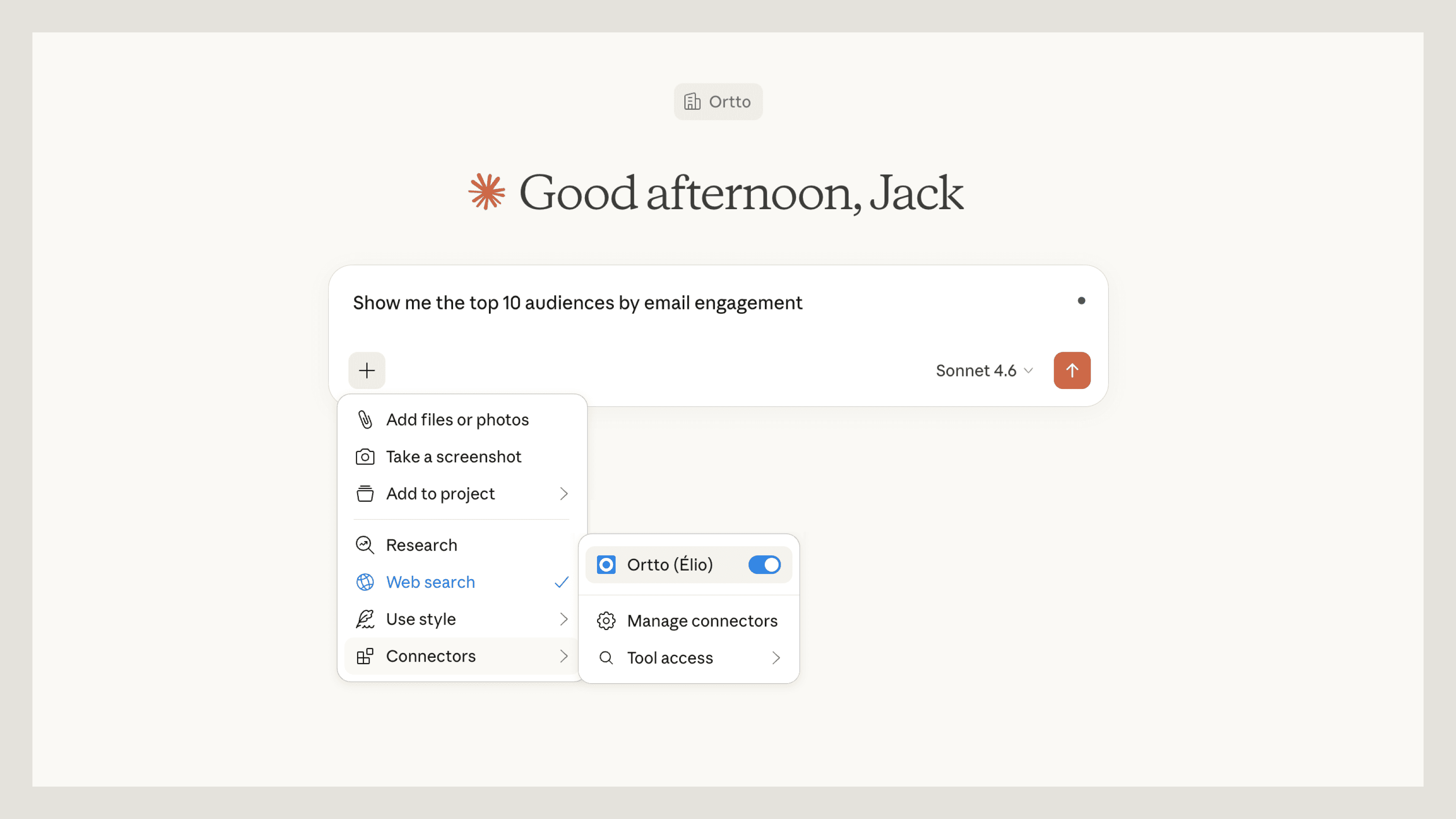
Available in both Claude Web and Claude Desktop
Steps:
1. Open Claude and navigate to “Settings”. Select “Connectors” and click “Browse Connectors”.
Please note: You will need a paid Claude plan to connect. If you have a corporate Claude account, your administrator will need to approve this connection for your organization.
2. Select “Connectors”. and click “Add custom connector” at the bottom
3. Enter your connector’s name and remote MCP server URL
The remote MCP server URL you use depends on the region where your Ortto account is hosted.
Here you need to paste the scoped key to one of the below URLs after ‘jwt=’.
United States: https://mcp-api-us.ortto.app/mcp?jwt=your-scoped-key
Europe: https://mcp-api-eu.ortto.app/mcp?jwt=your-scoped-key
Australia: https://mcp-api-au.ortto.app/mcp?jwt=your-scoped-key
4. Click “Add” to finish setting things up.
Connect ChatGPT
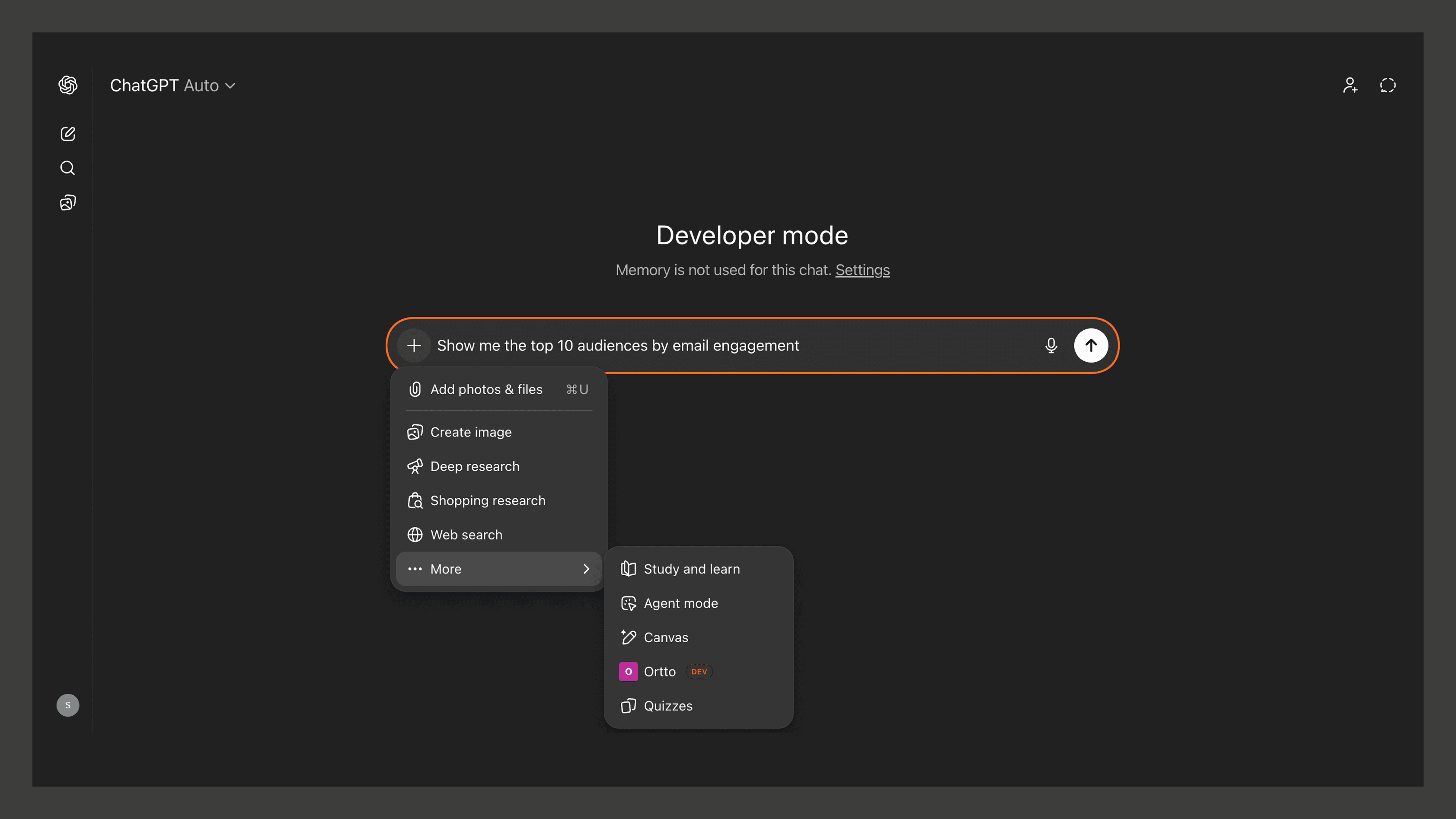
Steps:
1. Go to ChatGPT and navigate to “Settings”. Select “Apps & Connectors”.
2. Select “Advanced settings” and enable “Developer mode”.
3. Go back to the previous screen and click “Create”.
4. Enter your connector’s Name, Description and MCP Server URL. Select “No authentication” in the Authentication dropdown, and tick the security checkbox if you wish to proceed.
*The MCP Server URL follows the same rule as above for Claude.
5. Click "Create" to finish setting things up.
Now you are all set to start prompting!
Ask questions or give commands in plain language - your AI tools will pull customer data straight from Ortto.
Here are some battle-tested prompts to get you started:
“Show me top 10 audiences by email engagement”
“Summarize the performance for my last month’s email campaigns”
"Which journey is performing the best in terms of conversion rate?"
"At what stage is engagement lowest in my onboarding journey, and how can I improve it?”
"Generate a knowledge base article from this file and title it 'Feature Overview'"
“List all active journeys and provide a brief summary for each”